
Getting Started#
The Natural Robustness Toolkit (NRTK) helps you test AI model robustness by simulating real-world operational conditions. Follow these steps to install nrtk, run your first perturbation, and connect your scenario to the right tools.
Step 1: Install nrtk#
nrtk can be installed via pip from PyPI.
Warning
The recommended way to install nrtk via pip is to use a virtual environment. To learn
more, see creating virtual environments in the Python Packaging User Guide.
$ pip install nrtk
nrtk can be installed via conda from conda-forge.
Warning
The recommended way to install nrtk via conda is to use a virtual environment. To learn
more, see creating environments in the conda documentation.
$ conda install -c conda-forge nrtk
See also
For details on optional extras, installing from source, or developer setup, see Installation.
Step 2: Run a Sample Perturbation#
HazePerturber requires no additional dependencies beyond
the base nrtk install, making it ideal for a first test.
from nrtk.impls.perturb_image.environment import HazePerturber
import numpy as np
from PIL import Image

# Load your image as a numpy array
image = np.array(Image.open("your_image.jpg"))

# Create a haze perturber with medium haze strength
perturber = HazePerturber(factor=1.0)

# Apply the perturbation
img_out, _ = perturber(image=image)
Step 3: See the Results#
The factor parameter controls haze intensity. Here’s what different levels look like:
Light (factor=0.5) |
Medium (factor=1.0) |
Heavy (factor=1.5) |
|---|---|---|
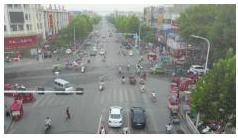
|
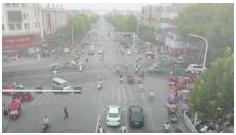
|
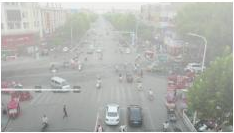
|
See also
These images demonstrate how NRTK simulates real-world visibility degradation. For the full parameter reference, see the Haze Simulation Module.
Step 4: Map Your Risk to the Right Tool#
Have a specific operational condition or test scenario in mind? Use the Interactive Operational Risk Matrix to discover which perturbations represent your mission environment and conditions.
The Risk Matrix maps real-world operational risks (weather, sensor limitations, platform vibration) to the NRTK perturbations that simulate them.